For: everyone. Time: 15 minutes. Difficulty: easier than building flat-pack furniture.
Before you start
- Power it up. The router needs to be on, and your computer needs to be talking to it, by Wi-Fi or by cable. Our command can only report what it can see. No router, no answer.
- No internet? No problem. You only need to be connected to the router, not the wider web.
- Brand-new router? Plug it in and give it a couple of minutes to wake up and settle its lights. Then connect using the Wi-Fi name and password on the label. Often the address is printed there too, so you might not need the command at all.
- Grab the label. It's the router's ID card: login address, default password and sometimes the Wi-Fi details.
First, find your router's address
Your router has an address on your home network, called its IP address. You need it to open the router's settings page. It's often printed on the router's label. If it isn't, your computer can tell you.
Quick version (if you know your way around)
- Open Command Prompt and run
ipconfig. - Your router's address is the Default Gateway under your active adapter (usually 192.168.0.1 or 192.168.1.1).
- On a Mac, run
netstat -nr | grep default. - Then skip to the main steps below.
The full walkthrough (Windows 11)
What's the command prompt? It's a window where you type a short instruction and the computer types back an answer. It looks a bit retro, a bit "hacker film", and it's genuinely useful. Techy people use it because it's fast and gets straight to the point.
The instruction used here, ipconfig, only shows information about your network. It doesn't change anything, so you can't break anything by running it.
- Press the Windows key on your keyboard. The Start menu opens.
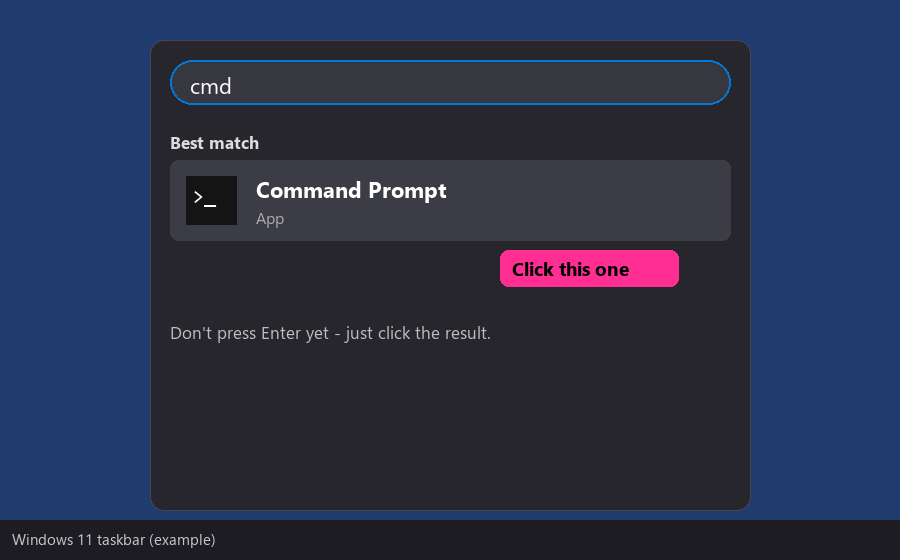
- Type cmd. Command Prompt appears under "Best match".
- Click Command Prompt. A black window opens.
- Type this, then press Enter:
ipconfig
- You'll get a block of text. Most of it is detail you can ignore.
- Find the line called Default Gateway. The number next to it is your router's address. It usually looks like 192.168.1.1 or 192.168.0.1.
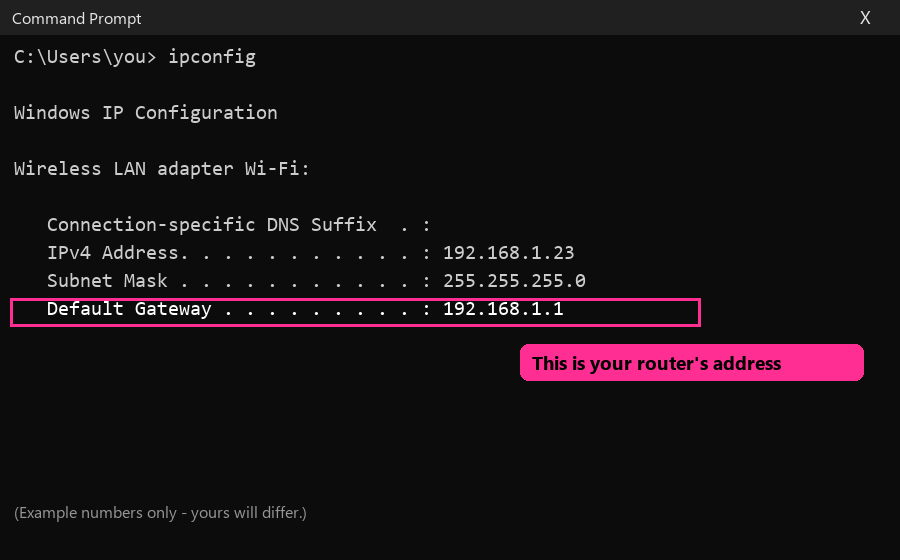
(These pictures are examples. Your numbers will be different.)
- Note the number down or take a photo. Then close the window with the X, or type
exitand press Enter.
If it doesn't look like the picture
- Several sections? Look under the one called Wi-Fi (or Ethernet if you're plugged in). Sections that say "Media disconnected" are empty, so skip them.
- Default Gateway is blank? That adapter isn't connected. Try another section. Every section blank? Check the router is on and your computer is actually connected to it. It happens to the best of us.
- "Not recognised" message? Probably a typo. Nothing bad happens. Try again.
On a Mac
- Press Command + Space, type Terminal and press Enter. (It's the Mac's version of Command Prompt.)
- Type
netstat -nr | grep defaultand press Enter. - The first number after "default" is your router's address.
On a phone Open your Wi-Fi settings, tap your network, and look for Router or Gateway.
Got the address? Now the main steps.
Steps
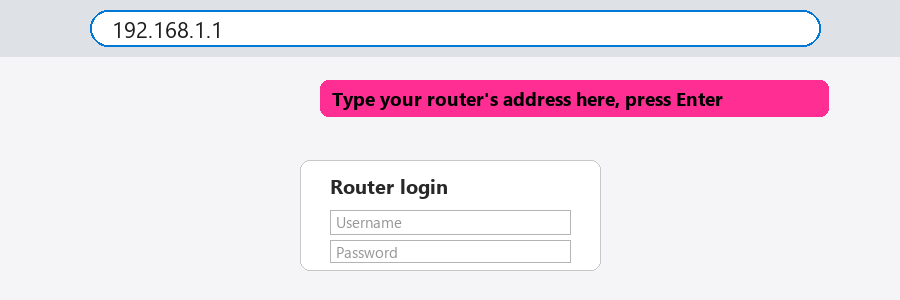
- Open the router page. In a web browser, type your router's address into the address bar at the top (where you'd normally type a website). For example:
192.168.1.1and press Enter. A login page should appear.
- Log in with the details on the label.
- Change the admin password. Make it long and different from your Wi-Fi password.
- Update the firmware. Look for "Firmware", "Software update" or "System". Apply any update. Don't turn the power off while it runs. This is the one time to leave it alone.
- Check your Wi-Fi security. Choose WPA3 if offered, or WPA2. Never choose "Open" or "WEP".
- Set a strong Wi-Fi password. A few random words is fine.
- Turn off WPS (the push-button pairing). It has known weaknesses.
- Turn off remote administration (also called remote management or WAN access) unless you need it.
- Check port forwarding. Delete any rule you don't recognise.
- Turn on automatic updates if the router offers it.
Check you did it
- You can log in with the new password.
- Remote administration says off or disabled.
- The firmware page shows the latest version.
Careful: if your router came from your internet provider, some settings may be locked. That's normal. Do what you can.
The skull-dog says: you just took control of the box everything else depends on. Not bad for a quarter of an hour.